- Your cart is empty
- Continue Shopping

Tinymce (Editor)
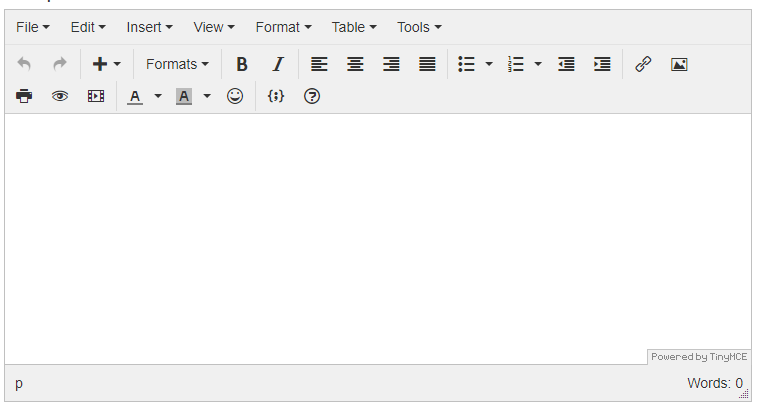
The TinyMCE Editor is a rich text editor with many text editing tools you would find in Microsoft Word or Google Docs. You can format text, insert images and video and add HTML source code.
Options Toolbar
The Options toolbar has settings and tools that affect the formatting and functionality of the editor. When you click each tab, a dropdown menu opens that features additional options. See the following list to learn more about each option.

- File – Dropdown with two selections:
- New Document – Clear the text editor.
- Print (CTRL+P) – Create a printable version for the contents of the text editor. Opens your computer’s print dialog box.
- Edit – Standard editing options:
- Undo (CTRL+Z) – Undo the last action.
- Redo (CTRL+Y) – Redo the previous action.
- Cut (CTRL+X) – Remove the selected element and add it to your pasteboard.
- Copy (CTRL+C) – Copy the selected element and add it to your pasteboard.
- Paste (CTRL+V) – Insert an element in your pasteboard.
- Paste as text – Toggle on the option to paste text without formatting styles. Select again to turn off.
- Select all (CTRL+A) – Select all elements in the editor.
- Find and replace (CTRL+F) – Find the inputted text with the option to replace it with the text of your choice. Opens the Find and replace pop-up window.
- Insert – Insert various forms of media and formatting options:
- Media – Embed a video. Opens the Insert/edit media pop-up window.
- Image – Embed an image. Opens the Insert/edit image pop-up window.
- Link (CTRL+K) – Insert a hyperlink. Opens the Insert link pop-up window.
- Special character – Insert a symbol or special character. Opens the Special character pop-up window.
- Horizontal line – Insert a horizontal rule/dividing line.
- Anchor – Inserts an
idin the html; the value of which can be linked to via the Insert Link pop-up > Anchors dropdown or in the HTML source editor (Tools > Source code) usinga href="#chosen-anchor-name>Link text</a>. - Page break – Insert a page break. Anything below the break will appear on a new page. This is useful if you plan on printing your text editor content; however, it will have no affect when viewed on the site.
- Date/time – Insert a date or time format to which you can add your values.
- Nonbreaking space – Inserts a nonbreaking space in the HTML source (
) ensuring that the space will display. - Template – Insert a defined template; however, there are no templates defined in the plugin.
- Table of Contents – Inserts a table of contents. You must have headings defined for this to work.
- View



Reviews
There are no reviews yet.